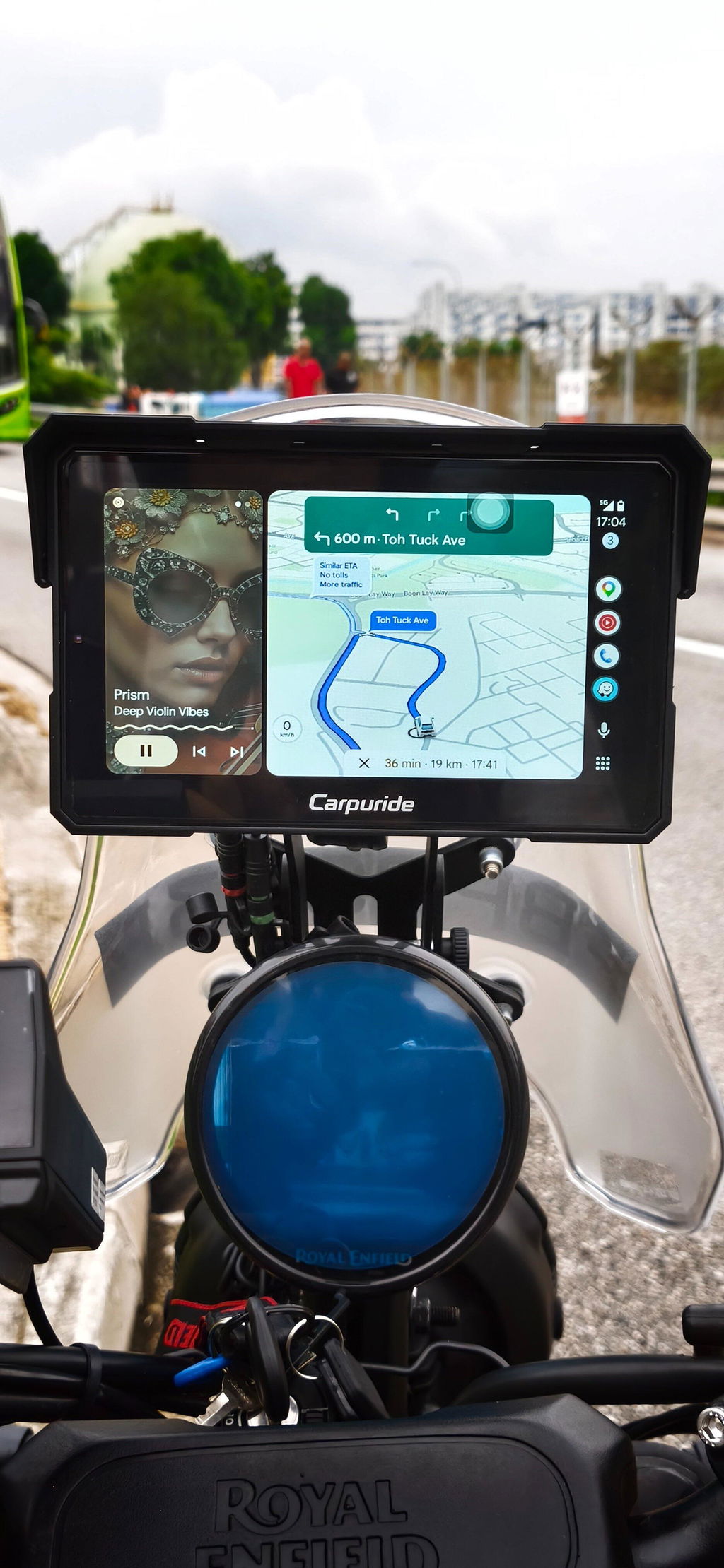
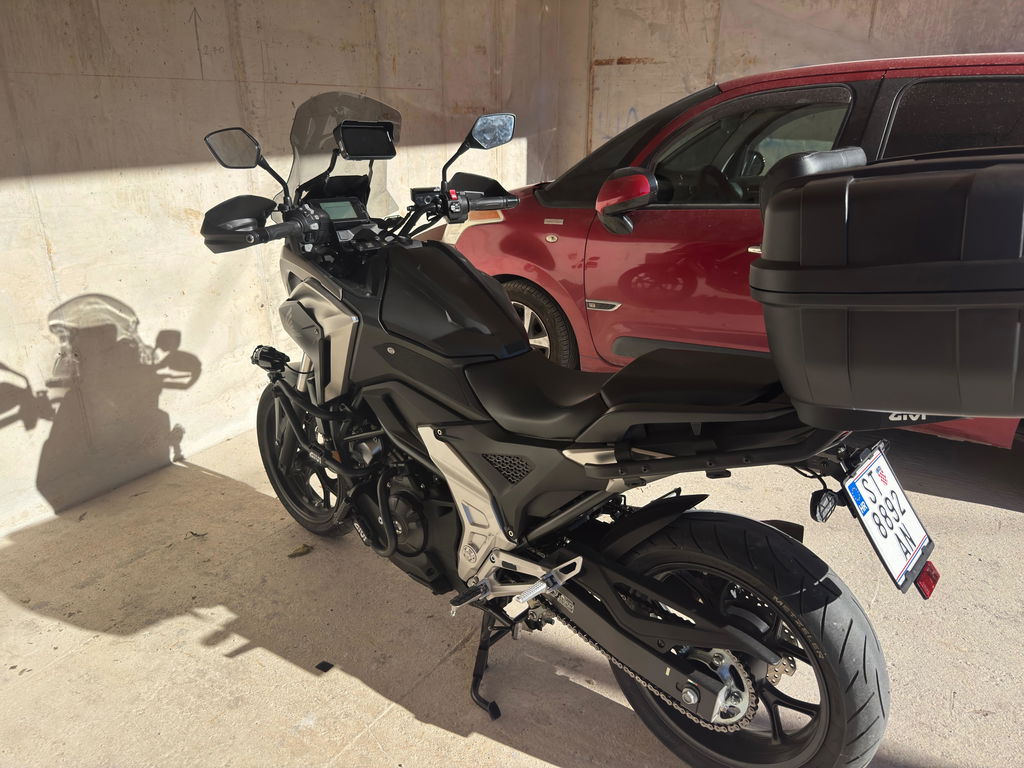
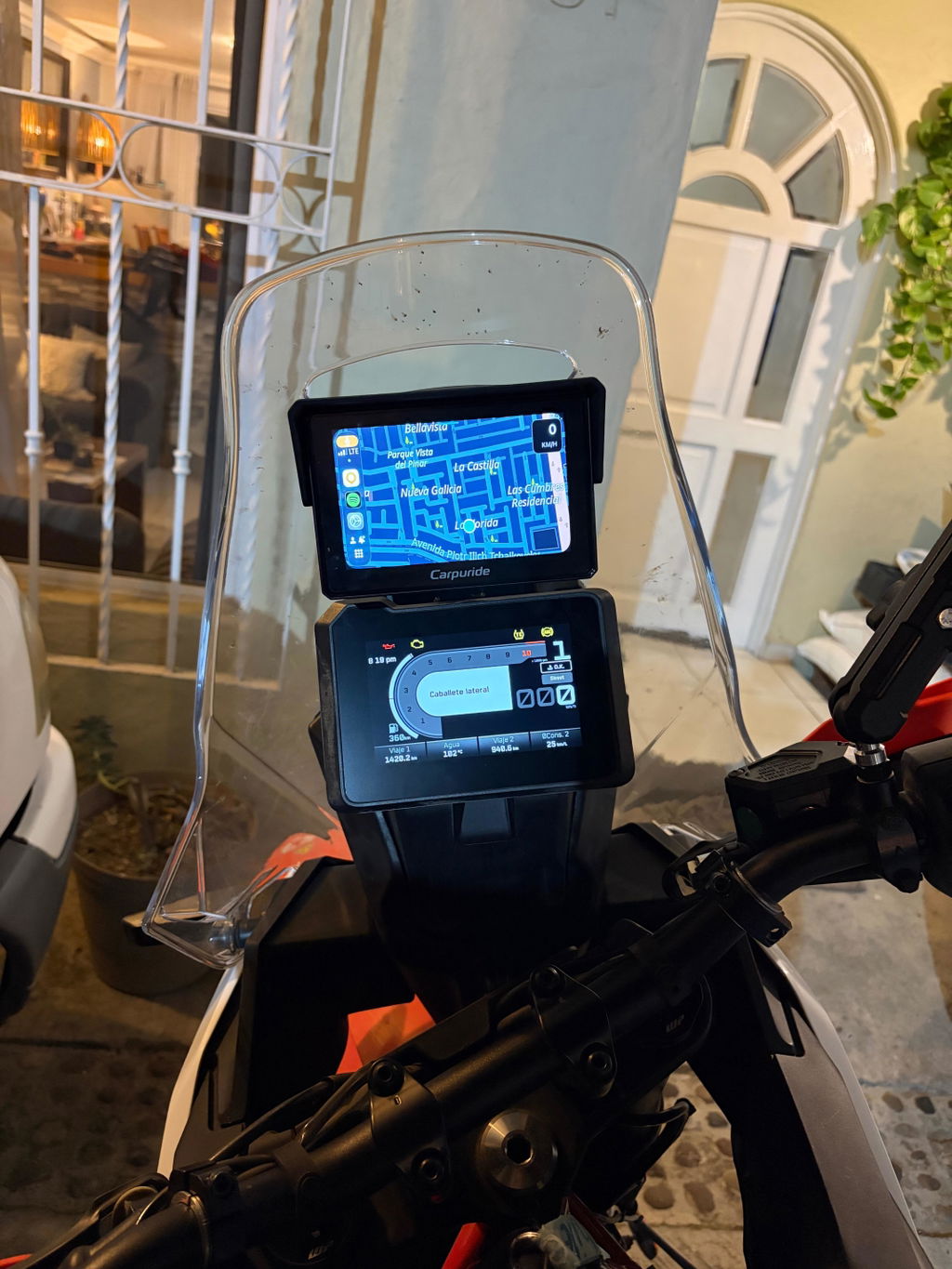
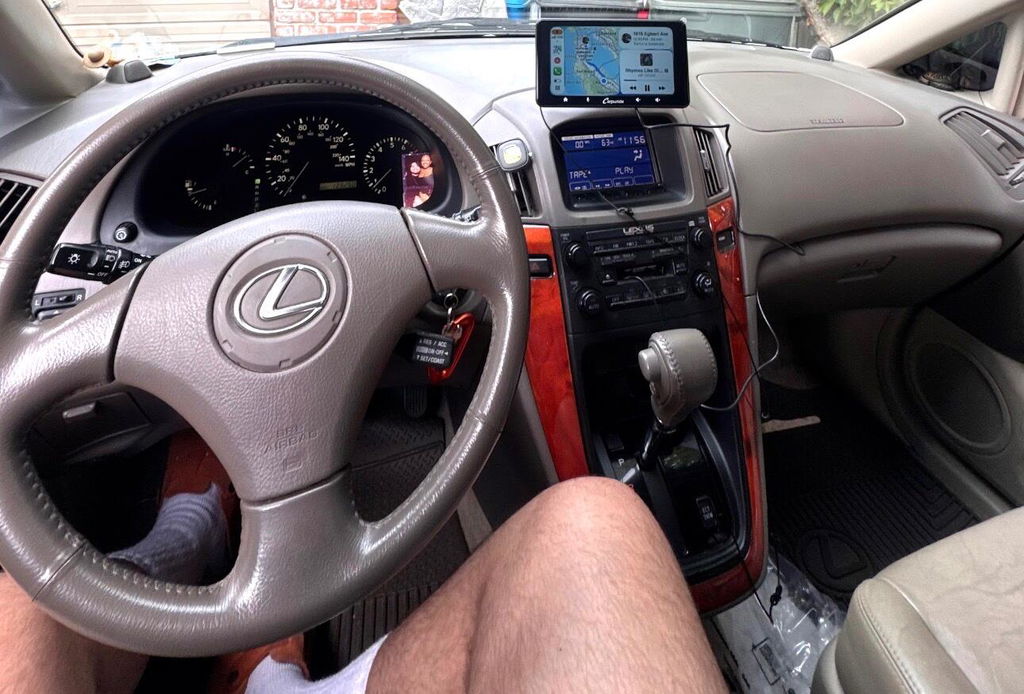
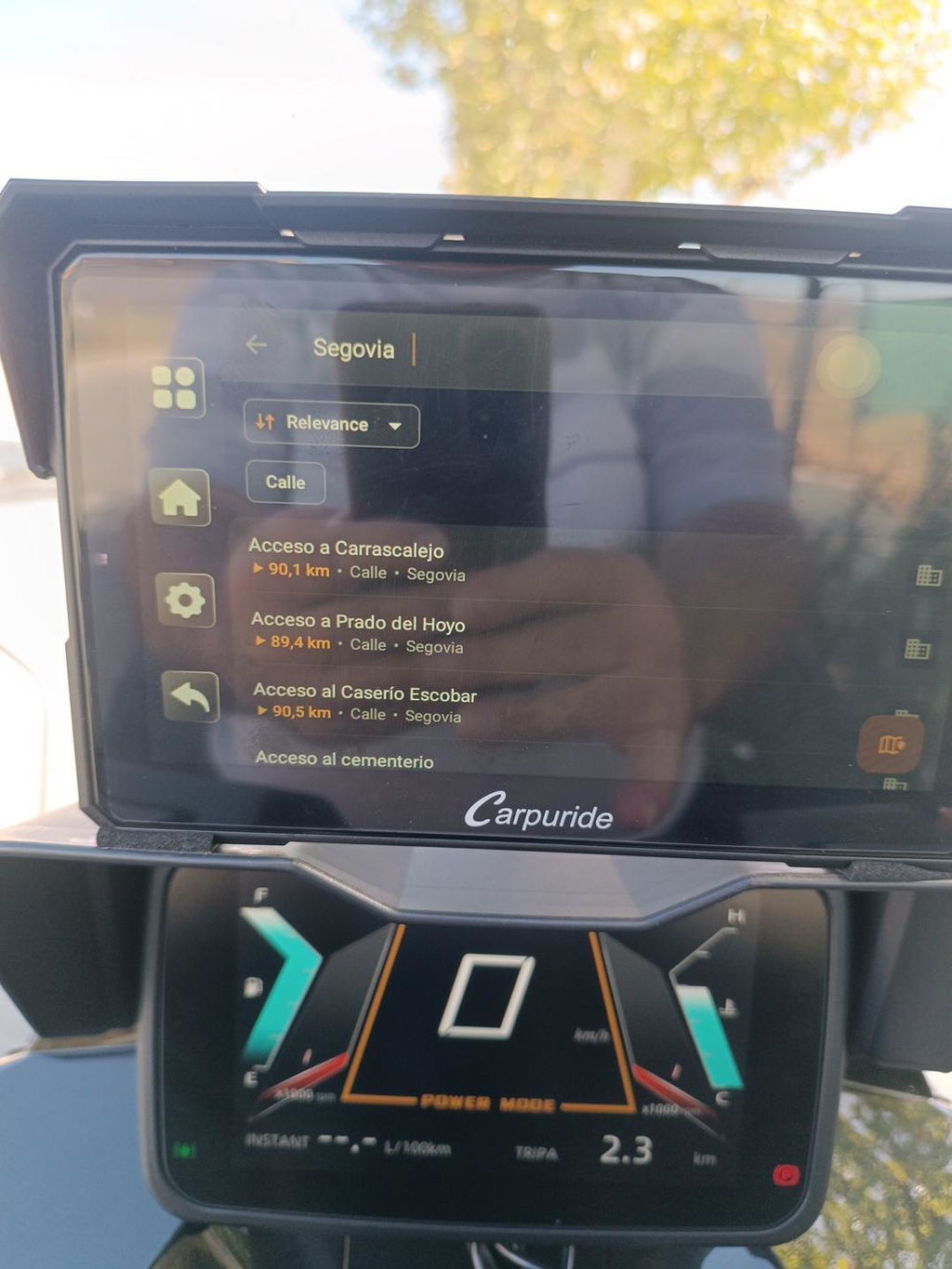
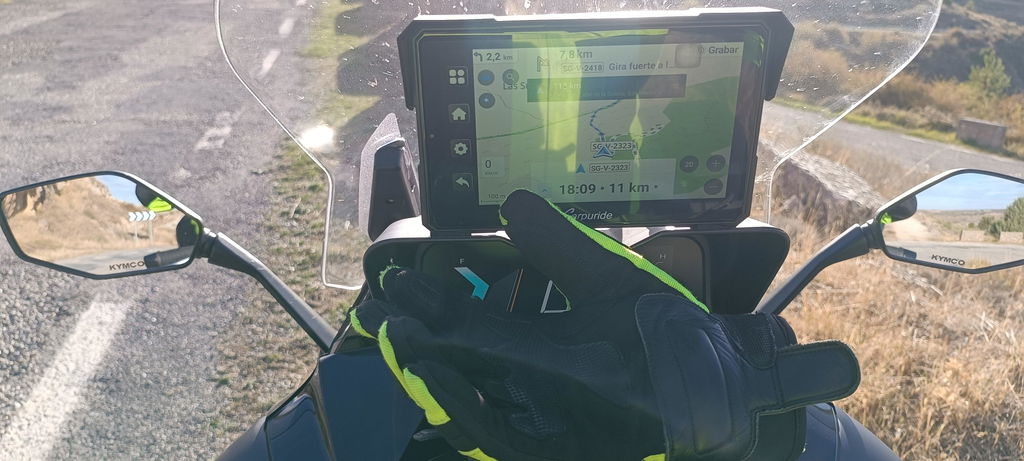
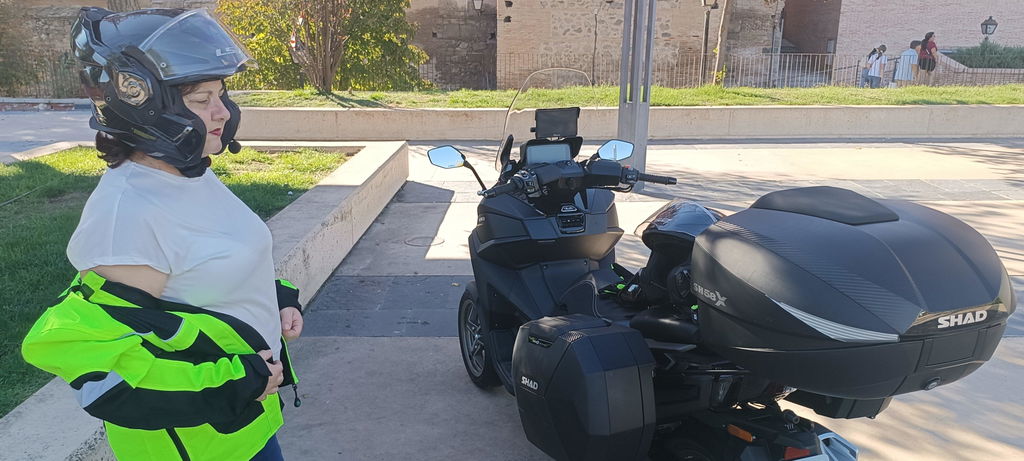
Using the Carpuride motorcycle CarPlay screen offers convenience and functionality, and can significantly enhance your riding experience, but users may occasionally encounter connection issues. This article summarizes common connection issues and offers practical solutions to help you get the most out of your Carpuride device.
Correct Steps To Connect Your Phone And Bluetooth Device
1. Connecting Your Carpuride Device to Your Phone
The Carpuride CarPlay and Android Auto screen mirrors apps from your smartphone that are compatible to Apple CarPlay or Android Auto. Due to safety considerations, some features may be restricted by Apple or Google. Correctly connecting your smartphone is essential for seamless operation.
Steps for Connecting an iPhone:
1. Tap the I-Play icon on the Carpuride device.
2. Enable Wi-Fi and Bluetooth in your iPhone's settings.
3. Locate the Carpuride device's Bluetooth name in your iPhone's Bluetooth settings and tap to connect.
4. Follow the pairing prompts, including allowing Pair for Pairing Request and contact sync.
5. Complete the connection to CarPlay and allow the Carpuride device to access the CarPlay app.
Steps for Connecting an Android Phone:
1. Tap the A-Auto icon on the Carpuride device.
2. Enable Wi-Fi and Bluetooth in your phone's settings.
3. In the Bluetooth settings, select Pair new device, locate the Carpuride device, and connect.
2. Select Audio Output Mode
After pairing, select the appropriate audio output mode on the main Audio Output interface.
BT Trans Mode: Connect the Bluetooth headset to the Carpuride device, please delete the Bluetooth headset connection record from your phone to avoid simultaneous connection, which may cause improper working issues.
iPlay/Auto Mode: Connect the Bluetooth headset to your phone, please delete the Bluetooth headset connection record from the Carpuride device to avoid simultaneous connection, which may cause improper working issues.
Note: Bluetooth headsets can also be replaced with Bluetooth helmets, intercoms, Bluetooth speakers, etc.
Common Connection Issues and Solutions

1. Device Disconnects or Phone Fails to Reconnect
Scenario: While navigating in an unfamiliar city, the screen becomes unresponsive, navigation stops, and music ceases to play. Attempts to reconnect fail.
Cause: This issue is often due to cache conflicts between the Carpuride device and the phone or excessive Bluetooth connection records.
Solution:
Step 1: Reconnect and Restart
While safely parked, make sure your phone’s Bluetooth and Wi-Fi are enabled, then reconnect. If the problem continues, restart both your phone and the Carpuride device and try again.
Step 2: Clear Connection Records and Pair Again
- On your phone: Remove the saved Carpuride Bluetooth, Wi-Fi, and CarPlay or Android Auto records, where available.
- On the Carpuride device: Delete your phone’s saved Bluetooth and related Wi-Fi records, where available.
Only remove records related to this connection. Pair again using the connection steps above, select the appropriate audio output mode, and test.
Step 3: Restore Factory Settings If Needed
If the previous steps do not work, restore the Carpuride device to factory settings, then set it up, pair again, and test.
Important: A factory reset clears saved device settings and connection records, unlike simply deleting pairing records. Only do this after reconnecting and re-pairing have failed. If the issue remains, contact Carpuride Support rather than repeatedly resetting.
2. Voice Commands Are Unresponsive

Scenario: While riding, you attempt to search for a gas station using voice commands. The device responds initially but fails to react to subsequent commands.
Cause: Unresponsive voice commands are often related to microphone connection issues or incorrect Bluetooth settings, particularly when multiple devices are connected.
Solution:
Step 1: Reconnect Devices
While safely parked, follow Steps 1 and 2 in Issue 1 to reconnect and re-pair, then complete the checks below before considering a factory reset.
Step 2: Activate the Voice Assistant
- iPlay/Auto Mode: Long press the music-sharing button on your Bluetooth headset.
- BT Trans Mode: Tap the microphone icon in the bottom-left corner of the CarPlay interface.
Step 3: Test Voice Commands
Speak into your Bluetooth headset’s microphone and check whether commands work.
If all the checks above fail, you can try a factory reset which clears saved device settings and connection records. Reconnect your phone and headset, select the appropriate audio output mode, and test again. Contact Carpuride Support if the issue persists.
3. Screen Flickering

Scenario: The screen flickers, freezes or repeatedly switches displays.
Cause: On earlier software versions, an accidental connection to the internal Bluetooth entry Carp.BT Trans could cause a conflict. This connection is used in the background for BT Trans Mode and is not intended for manual pairing. Updated software hides it from user selection while retaining its background function.
Solution: Update your Carpuride device to the latest software version available for your model. Contact Carpuride Support with your device model and current software version for the appropriate update instructions. If flickering continues after updating, contact support for further troubleshooting.
For connection checks and alternative manual troubleshooting, see our complete guide to fixing Carpuride screen flickering issues.
4. Distorted Audio During Calls
Scenario: During a call, the person on the other end cannot hear you clearly, or the audio sounds distorted and sharp.
Cause: Incorrect audio settings or improper microphone volume can lead to poor audio quality.
Solution:
Step 1: Check Audio Output Mode
Confirm the audio output mode in the Audio Output section of the Carpuride device, as this issue often occurs in BT Trans Mode.
Step 2: Adjust Microphone Volume in BT Trans Mode

- If the other party cannot hear you: During the call, press the power button on your Bluetooth headset to adjust the microphone volume to a level between 7 and 15. Increase volume if necessary.
- If the audio is distorted: Reduce the microphone volume to minimize sharp sounds or noise.
Note: Adjustments must be made during the call for changes to take effect.
Additional points: In BT Trans audio mode, 3 volume bars will appear on the device: phone, voice and mic.
Phone: refers to the volume of the sound transmitted to you by the other party during the call. If you can't hear the other party's voice during the call, you can turn up the volume; on the contrary, if the volume is too loud, a bit harsh or noisy during the call, you can turn down the volume appropriately.
Voice: refers to the sound of navigation, music, etc.
Mic: refers to the sound you transmit to the other party of the call, and the adjustment method is the same as the phone volume.
If the above method still cannot completely solve the audio problem, you can try switching to iPlay/Auto mode.
Conclusion
By following the detailed solutions provided in this guide, you can effectively troubleshoot common connection issues with your Carpuride motorcycle screen and enjoy a smooth riding experience. If problems persist, please visit the Carpuride website or contact our customer support team for further assistance.
Need further help? Contact Carpuride Support at support@carpuride.com.
Read More
Carpuride Connection Issues: Troubleshooting for iPhone and Android
Troubleshooting Guide: No Sound in Your Bluetooth Helmet After Connecting to Motorcycle CarPlay?
How to Enable Siri for CarPlay in 5 Easy Steps?