Background
Many adventure motorcyclists and off-road enthusiasts rely on specialized navigation apps (such as Wikiloc, OsmAnd, Locus Map, etc.) to read GPX files for route navigation. However, most of these professional off-road apps are not included in Android Auto's official approved app list, making it a common challenge to use them on Carpuride devices.
Solutions
Depending on your Carpuride model, we offer two different solutions:
Solution 1: Carpuride 702 Plus - Standalone Mode (Recommended)
Carpuride 702 Plus supports independent downloading and running of Google apps, allowing standalone use when connected to external WiFi without requiring a phone connection.
Setup Steps:
-
Connect to WiFi
Connect your Carpuride 702 Plus to an external WiFi network (you can use your phone's hotspot or other WiFi sources) -
Download Navigation Apps
Download your preferred off-road navigation apps directly on the 702 Plus through Google Play, including:- Wikiloc
- OsmAnd
- Locus Map
- Google Maps
- Kurviger
- Other GPX-compatible navigation apps
-
Import GPX Files
Transfer GPX files to the device using the following methods:- Download from cloud storage via WiFi (Google Drive, Dropbox, etc.)
- Download from email attachments
- Transfer using USB storage devices
-
Start Navigation
Open the GPX file in your navigation app and navigate directly on the 702 Plus large screen without needing a phone connection
Advantages:
- ✓ Completely standalone operation, no phone dependency
- ✓ Supports all Android navigation apps
- ✓ Large screen display for clearer off-road navigation
- ✓ Saves phone battery
- ✓ Allows simultaneous phone use for other tasks
Solution 2: Other Carpuride Motorcycle CarPlay Products - CarPlay/Android Auto Mode
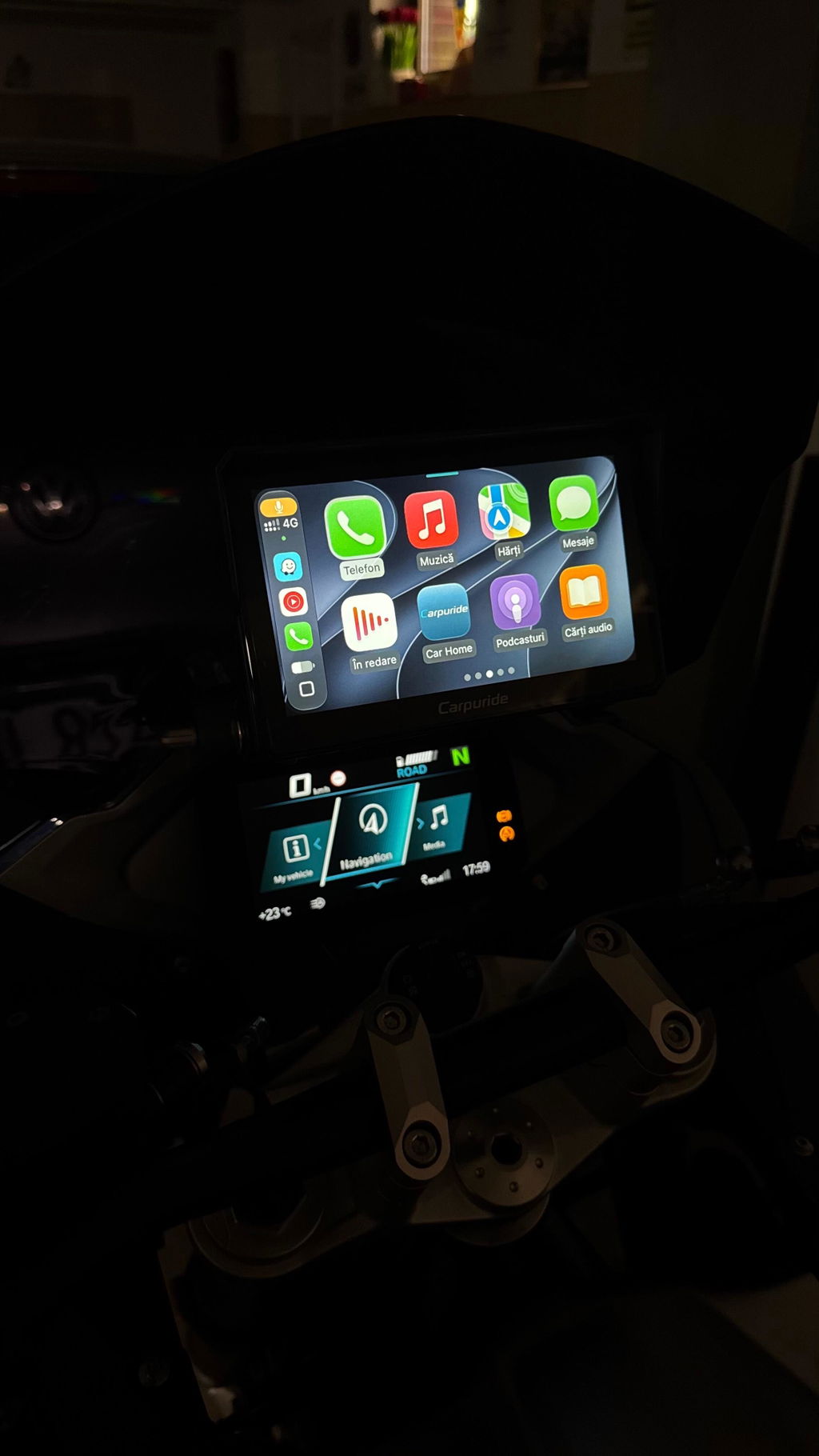
If you're using other Carpuride motorcycle CarPlay products, direct app downloading and GPX file importing are currently not supported. Important: CarPlay/Android Auto acts as a screen mirroring system - all GPX file processing must be completed on your phone first, then the route is displayed on the Carpuride screen.
Step 1: Import GPX Files on Your Phone
-
Choose a Compatible Navigation App
Select a navigation app that supports CarPlay or Android Auto and GPX import. Note: Not all map apps support GPX files, and some apps may only show simplified navigation in CarPlay view without displaying complete track lines.
Recommended apps for motorcycle/off-road GPX navigation:- Gaia GPS (excellent CarPlay track compatibility)
- Guru Maps (excellent CarPlay track compatibility)
- Waze
- Sygic GPS Navigation
- Kurviger (designed specifically for motorcycles)
- OsmAnd (better compatibility on Android Auto)
⚠️ Google Maps Limitation: While Google Maps supports importing custom maps (including GPX) on the phone, it may not perfectly display these custom routes in the CarPlay interface. For off-road GPX navigation, we recommend using Gaia GPS or Guru Maps instead. -
Import GPX Files
Import GPX files into your selected navigation app using common methods:- Open from email attachments
- Import from cloud storage (Google Drive, Dropbox, iCloud)
- Use the app's built-in file import function
- Transfer via the "Share" function from other apps
-
Save the Route
Open the GPX route in the navigation app, verify it's correct, and save it
Step 2: Use Navigation on Carpuride
- Connect your phone to the Carpuride device via CarPlay (iPhone) or Android Auto (Android phone)
- Open the navigation app with the imported GPX route on your phone
- Select the saved route and start navigation
- The route will automatically sync and display on the Carpuride large screen
Key Points:
- ✓ GPX file parsing is handled entirely by your phone's app
- ✓ Carpuride displays the navigation interface from your phone
- ✓ Choose apps with good CarPlay/Android Auto compatibility for best results
- ✓ Test the route display before your trip to ensure compatibility
Frequently Asked Questions
Q: Can the 702 Plus be used for offline navigation?
A: Yes. Download navigation apps that support offline maps (such as OsmAnd, Locus Map), download the offline maps in advance, and you can use GPX navigation without an internet connection.
Q: Will other Carpuride motorcycle products support standalone app downloading in the future?
A: There are currently no upgrade plans. If you need standalone functionality, consider upgrading to the 702 Plus.
Q: Can I still use CarPlay/Android Auto while using 702 Plus in standalone mode?
A: Yes. The 702 Plus supports switching between standalone mode and CarPlay/Android Auto mode.
Q: Will GPX routes lose information when transferred between different apps?
A: Basic route tracks and waypoint information are usually fully preserved, but some app-specific annotations or data may not be fully compatible. We recommend checking the route after importing.
Q: How do I choose a navigation app suitable for off-road use?
A: We recommend professional off-road navigation apps like OsmAnd, Locus Map, or Wikiloc (available on 702 Plus), which provide more detailed terrain information and off-road route support. For CarPlay users, Gaia GPS and Guru Maps offer the best track display compatibility.
Usage Tips
- Prepare in Advance: Test GPX file import and display before departure to ensure the route is correct
- Offline Maps: When heading to remote areas, be sure to download offline maps in advance
- Power Management: Ensure stable power supply to your Carpuride device during long off-road trips
- Backup Routes: Save multiple backups of important routes just in case
- 702 Plus Users: Install multiple navigation apps and choose based on different scenarios
- CarPlay Users: Verify app compatibility with CarPlay GPX display before your trip
Product Feature Comparison
| Feature | Carpuride 702 Plus | Other Motorcycle CarPlay Products |
|---|---|---|
| GPX Navigation Support | ✓ Supported | ✓ Supported |
| Standalone App Download | ✓ Supported | ✗ Not Currently Supported |
| Phone-Free Operation | ✓ Supported | ✗ Phone Connection Required |
| Professional Off-Road Apps | ✓ Direct Installation | ✗ Via Phone Only |
| Independent WiFi Connection | ✓ Supported | ✗ Not Currently Supported |
| CarPlay/Android Auto | ✓ Supported | ✓ Supported |