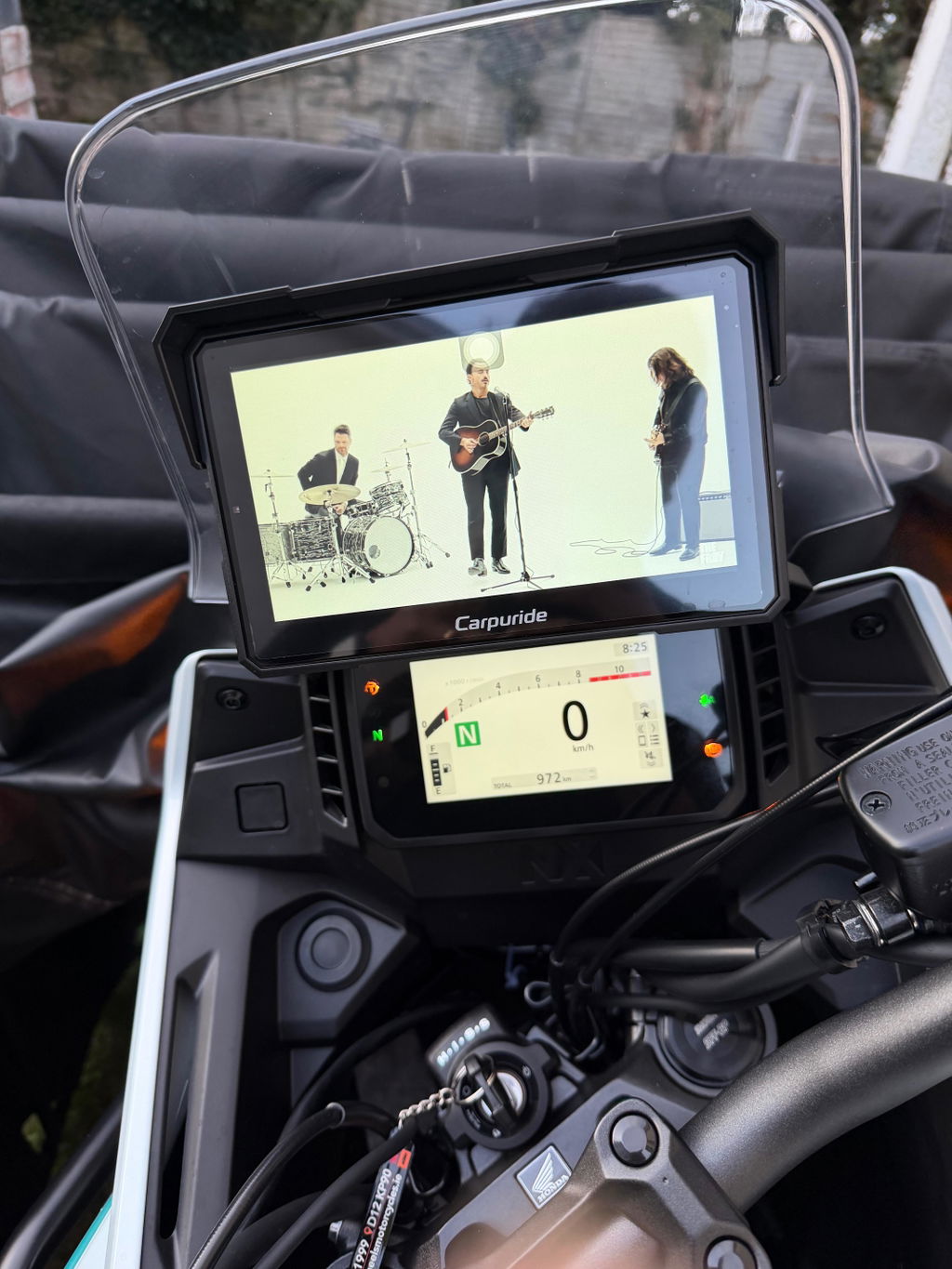
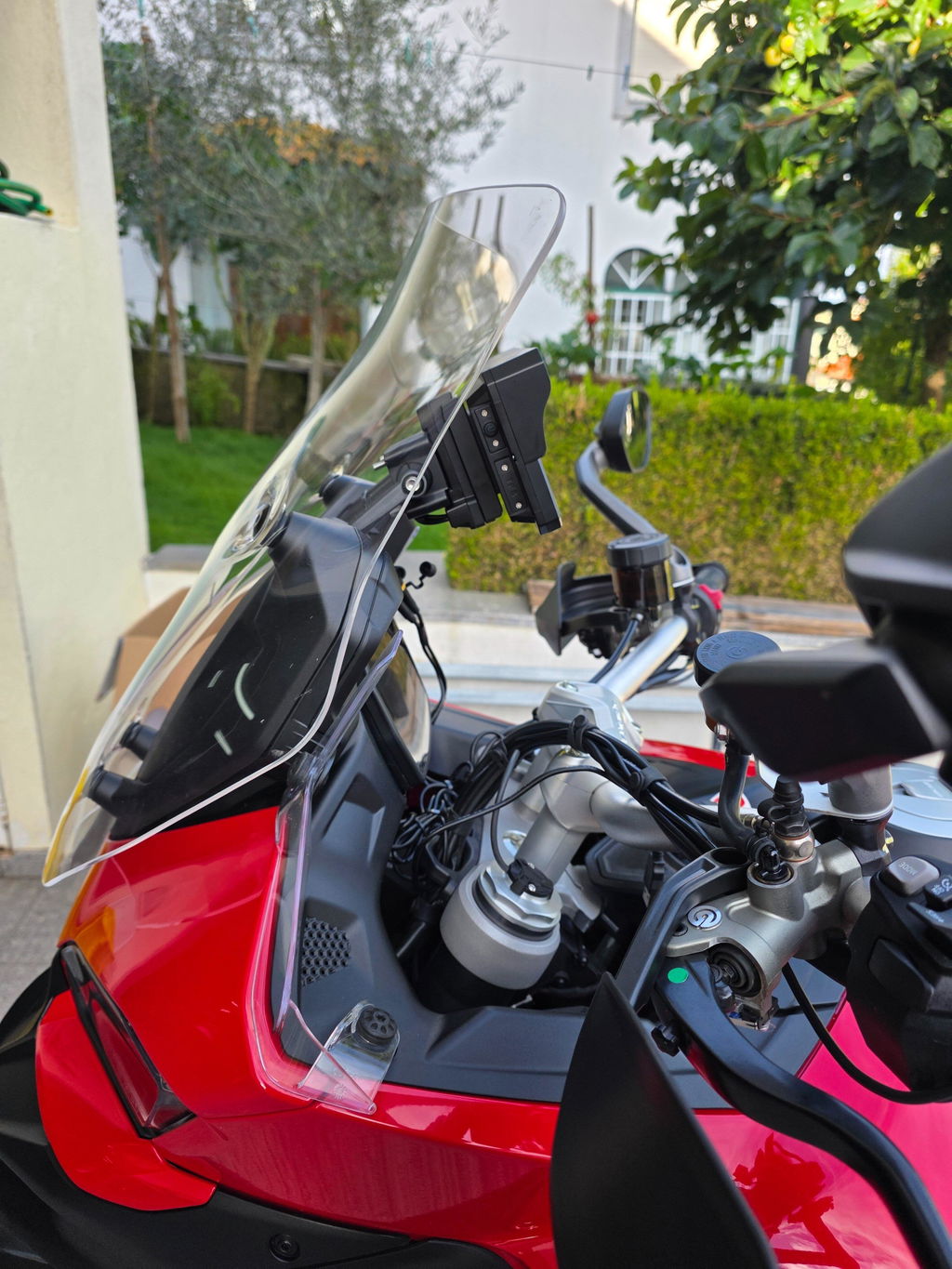
🔧 BMW Motorcycle Compatibility Guide
Quick Fix: Signal disconnections and TFT-NAV icon issues on W702BS/W502BS/W602BS can be resolved by updating to MCU version v1.18. This guide is specifically for these three models with BMW keyless navigation mount.
Last Updated: January 2, 2026
⚠️ IMPORTANT - Device Compatibility:
This guide is specifically for:
- ✅ Carpuride W702BS
- ✅ Carpuride W502BS
- ✅ Carpuride W602BS
NOT applicable to: W702B, W702B Pro, or any other BMW series products with "B" in the model name. If you have a different model, please contact support at service@carpuride.com before proceeding.
If you're experiencing compatibility issues between your BMW motorcycle's keyless navigation mount and your Carpuride W702BS/W502BS/W602BS system, this comprehensive guide provides clear solutions to get your system working perfectly.
🔍 The Compatibility Issue
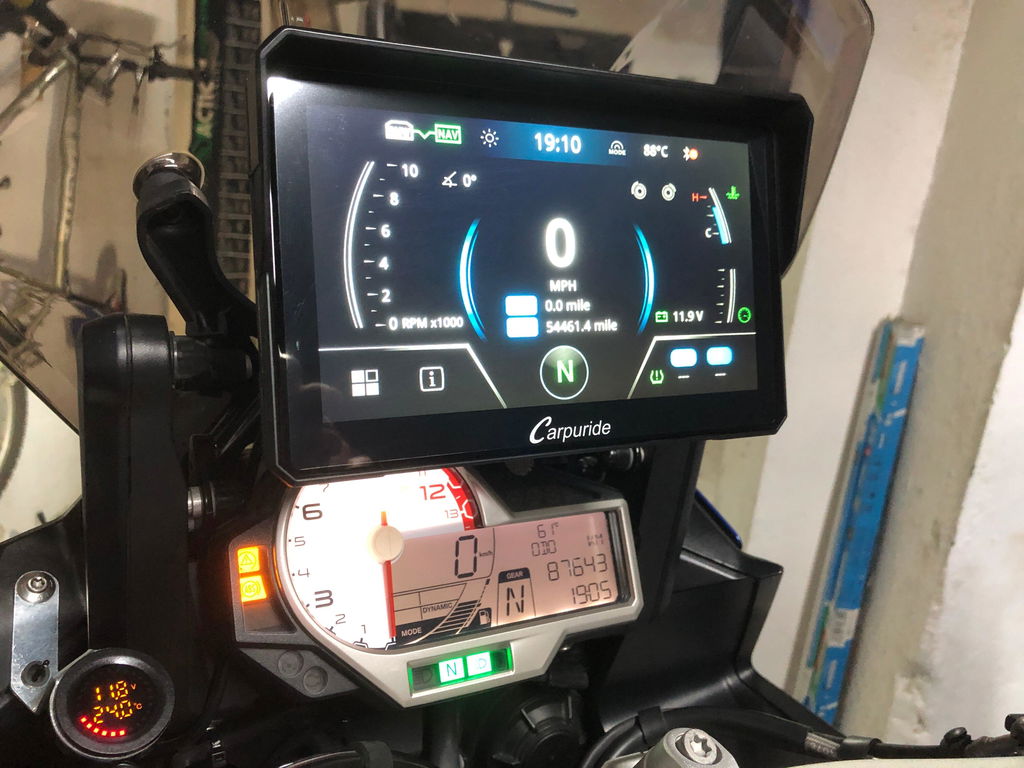
W702BS, W502BS, and W602BS users with BMW motorcycle keyless navigation mount (Cradle) may experience the following symptoms:
- ❌ Signal disconnections: Intermittent connection drops during rides, causing navigation and audio interruptions
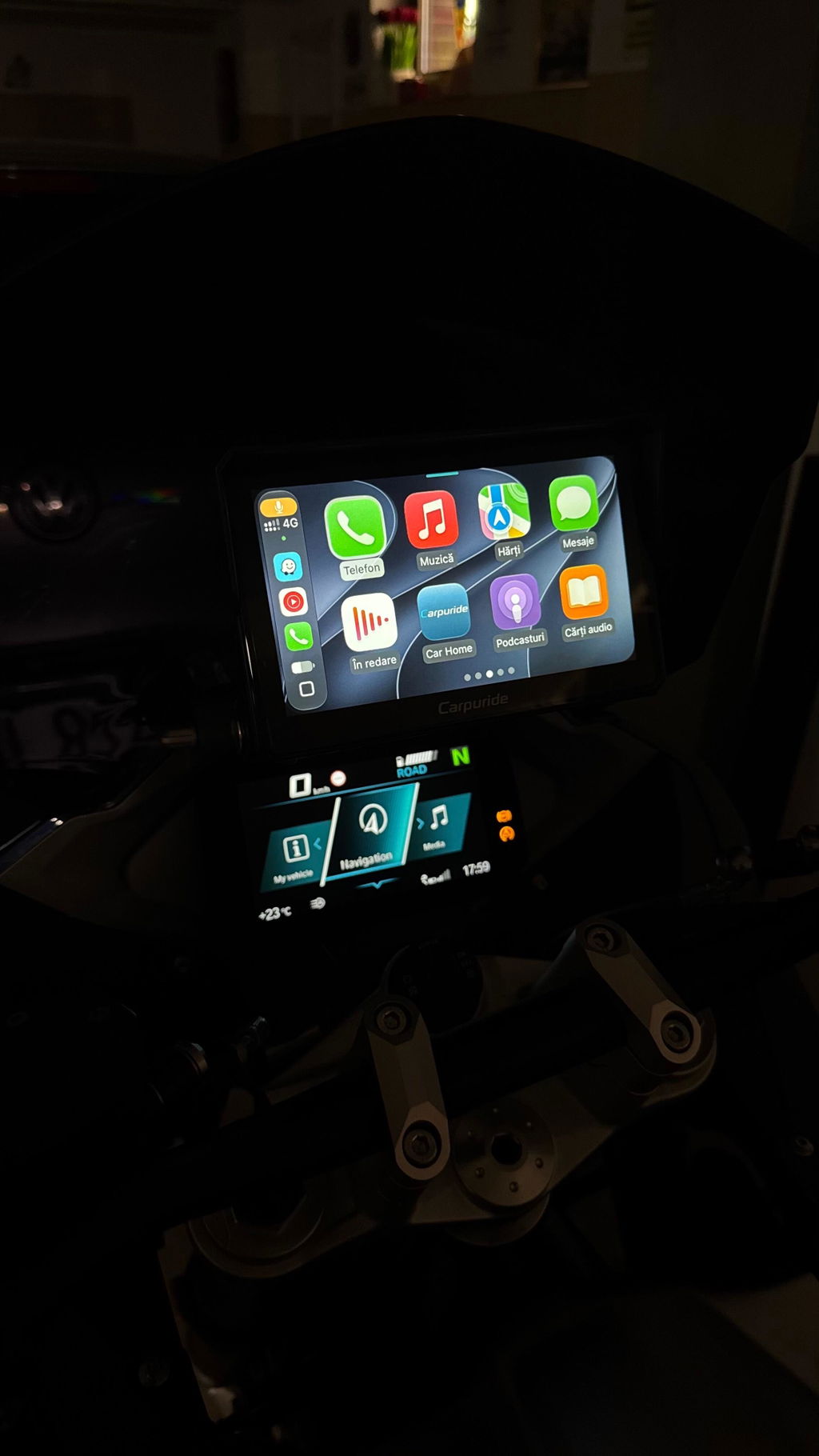
- ❌ TFT-NAV icon disappearance: The TFT-NAV icon on BMW dashboard disappears and reconnects frequently
- ❌ Wonder Wheel control issues: BMW's Wonder Wheel control becomes unresponsive or unstable
💡 Good News: These issues are related to the same root cause and can be resolved with a single firmware update to MCU v1.18 and the latest decoding software.
⚠️ Before You Start: Verify your device model is W702BS, W502BS, or W602BS and check your BMW Cradle version. See detailed compatibility check in the Important Notes section below.
✅ Complete Solution: Update MCU & Decoding Software
To resolve all compatibility issues, you need to update both:
- MCU firmware to version v1.18
- Decoding software to the latest version
📱 Step 1: Update Decoding Software
- Turn on your device and connect to WiFi or hotspot
- Go to Settings → General → MPEG OTA
- Check for and install the latest decoding software update
- Wait for the update to complete and device to restart
🔧 Step 2: Update MCU to v1.18
Choose one of the following update methods:
▼ Option A: OTA Update (Recommended - Easiest Method)
Best for: Users who can access MCU OTA settings
- Ensure your device is connected to WiFi or a hotspot
- Go to Settings → General → MCU OTA
- Check your current MCU version
- If v1.18 update is available, tap Update or Download
- Wait for the download to complete
- Tap Install to begin the update process
- The device will restart automatically after installation completes
- Verify the MCU version is now v1.18
💡 Tip: OTA updates are the safest and most convenient method. Make sure your device has at least 50% battery or is connected to power during the update.
▼ Option B: Manual TF Card Update
Best for: Users who cannot access MCU OTA settings or OTA update fails
- Contact Carpuride support at service@carpuride.com to request the MCU v1.18 update file (specify your device model: W702BS, W502BS, or W602BS)
- Download the update file to your computer
- Format a TF card (microSD card) to FAT32 format
- Copy the update file to the root directory of the TF card
- Turn on your device
- Insert the TF card into the device's card slot while the device is running
- The device will automatically detect and install the update
- Wait for the installation to complete (do not turn off the device during this process)
- The device will restart automatically when finished
- Remove the TF card and verify MCU version is v1.18
⚠️ Warning: Do not turn off the device or remove the TF card during the update process. This could damage your system.
🏍️ Step 3: Test with Your BMW Motorcycle
- Restart your device
- Restart your BMW motorcycle
- Mount the device in the BMW Cradle
- Wait 2-3 minutes for the system to fully sync with your BMW's electronics
- Verify the following:
- ✅ Connection remains stable during operation
- ✅ TFT-NAV icon appears and stays visible on BMW dashboard
- ✅ Wonder Wheel control responds properly
- ✅ No random disconnections occur
✅ Success! If all checks pass, your device is now fully compatible with your BMW motorcycle's keyless navigation mount.
📋 Important Notes & Best Practices
⚠️ Verify Device and Cradle Compatibility
Device Model Check:
- This solution is ONLY for W702BS, W502BS, and W602BS
- NOT for W702B, W702B Pro, or other BMW series products with "B" in the name
- Check your device label or Settings → About Device to confirm exact model
- If unsure, email service@carpuride.com with a photo of your device label
BMW Cradle Version Check:
- Check the BMW Cradle packaging for version information
- Contact your BMW dealer if unsure about Cradle version
- Email service@carpuride.com with both device and Cradle details if uncertain
💡 Recommended Update Method
We strongly recommend using OTA (Over-The-Air) updates via Settings → General → MCU OTA because:
- ✅ Simple and user-friendly interface
- ✅ More stable and reliable process
- ✅ Automatically verifies file integrity
- ✅ Less prone to user error
- ✅ No need for external TF card or computer
🆘 If Issues Persist After Updating
If compatibility issues remain after completing both updates, please contact our technical support team (full contact details at the bottom of this article).
What to include in your message:
- Confirm device model: W702BS, W502BS, or W602BS
- Current MCU version (check in Settings → General → MCU OTA)
- BMW motorcycle model and year
- BMW Cradle version
- Detailed description of remaining issues
- Screenshots or photos of error messages (if applicable)
❓ Frequently Asked Questions (FAQ)
Q1: I have W702B or W702B Pro. Will this solution work for me?
No. This guide is specifically for W702BS, W502BS, and W602BS devices only. If you have W702B, W702B Pro, or any other BMW series product with "B" in the model name and are experiencing BMW Cradle compatibility issues, please contact service@carpuride.com for device-specific solutions.
Q2: How do I check which model I have?
Check the device label on the back or bottom of your unit. It will clearly show the model number (W702BS, W502BS, or W602BS). You can also check in Settings → About Device → Model.
Q3: How do I check my current MCU version?
Go to Settings → General → MCU OTA. Your current MCU version will be displayed at the top of the screen.
Q4: Do I need to update both decoding software AND MCU?
Yes. Both updates are required to fully resolve the compatibility issues. Update the decoding software first, then update the MCU to v1.18.
Q5: How long does the MCU OTA update take?
The OTA update typically takes 5-10 minutes, depending on your internet connection speed. Make sure your device has at least 50% battery or is connected to power during the update.
Q6: What if I can't find MCU OTA in my settings?
If you cannot find Settings → General → MCU OTA, use the manual TF card update method instead. Contact service@carpuride.com to request the update file for your specific model.
🎯 Quick Troubleshooting Checklist
Before contacting support, verify these items:
- ✅ Device model is confirmed as W702BS, W502BS, or W602BS
- ✅ Decoding software is updated to the latest version
- ✅ MCU version is v1.18 or later
- ✅ Device is properly mounted in the BMW Cradle
- ✅ All connections are secure and clean
- ✅ BMW motorcycle's battery is in good condition
- ✅ Both device and motorcycle have been restarted after updates
- ✅ Allowed 2-3 minutes for system sync after mounting
✓ Need More Help?
Our technical support team is here to help you get the most out of your Carpuride device with your BMW motorcycle.
- 📧 Email: service@carpuride.com
- ⏰ Response Time: Within 24 hours
- 🌍 Support: Available worldwide in multiple languages
- 💬 What to Include: Confirm your exact model (W702BS/W502BS/W602BS), current MCU version, BMW model, Cradle version, and detailed issue description with photos if possible
Related Articles:
Android Phone Compatibility Guide |View All Guides