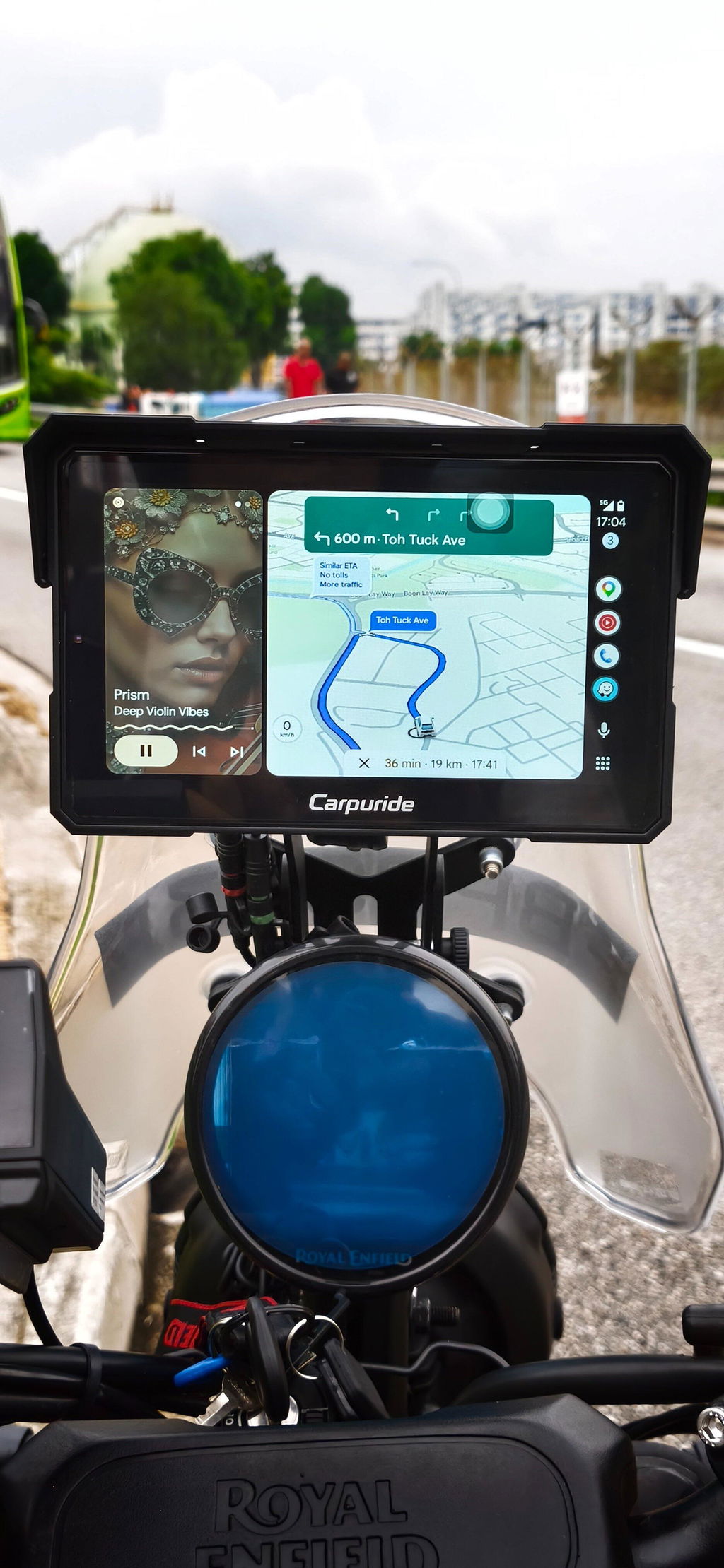
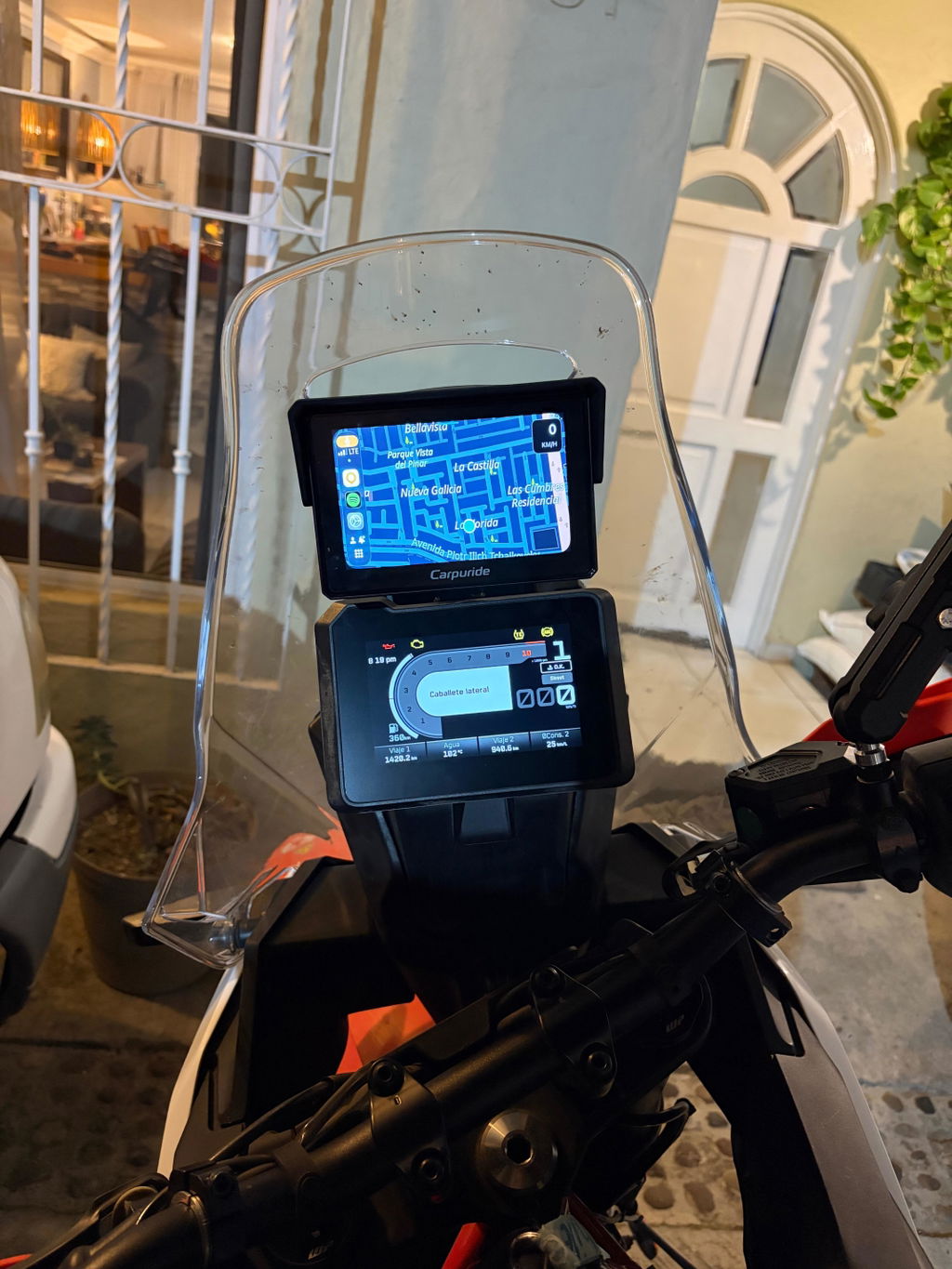
If your phone cannot connect to your Carpuride screen, or Apple CarPlay or Android Auto will not open, follow the solution that matches your problem.
Menu names and available settings vary by device and phone operating system. If an option is not available, continue with the other relevant checks.
Complete all setup and troubleshooting while safely parked.
Step 1: Identify Your Connection Problem
- Your phone cannot find the Carpuride device. Go to Solution 1.
- Your phone finds the device, but Bluetooth pairing fails. Go to Solution 2.
- Bluetooth connects, but CarPlay or Android Auto does not open. Go to Solution 3.
- CarPlay or Android Auto opens, but keeps disconnecting. Go to Solution 4.
If CarPlay works normally but your Bluetooth helmet headset has no sound, see our Bluetooth helmet audio troubleshooting guide instead.
Step 2: Follow the Matching Solution
Solution 1: Your Phone Cannot Find the Carpuride Device
- Make sure your Carpuride screen is powered on.
- Open the CarPlay or Android Auto connection function on the screen, as appropriate for your phone.
- Turn on Bluetooth and Wi-Fi on your phone, then search for the Bluetooth device name displayed on your Carpuride screen.
- If the device does not appear, restart both your phone and Carpuride screen, then search again.
Use the Bluetooth name displayed on your own screen rather than an example name from another device.
If the device still does not appear, continue to Step 3.
Solution 2: Your Phone Finds the Device, but Pairing Fails
Temporarily disconnect other Bluetooth devices, then clear only the saved records for this phone–Carpuride connection and pair again.
On Your Phone
- Open Bluetooth settings and forget or unpair the saved Carpuride device.
- If a Carpuride Wi-Fi network is saved, forget that network.
- On an iPhone, remove the saved Carpuride vehicle from CarPlay settings, if listed.
- On an Android phone, remove the saved Carpuride vehicle from Android Auto settings, if that option is available.
If a record is not listed, skip it and continue.
On Your Carpuride Screen
- Delete the saved Bluetooth record for your phone.
- Delete the related Wi-Fi record if your device provides that option.
- Restart the screen.
Deleting pairing records is not the same as restoring factory settings. Do not perform a factory reset simply because you cannot find a saved connection. For frequent disconnections, follow Solution 4.
Pair Again
- Restart your phone and enable Bluetooth and Wi-Fi.
- Open the CarPlay or Android Auto connection function on the Carpuride screen.
- Select the Bluetooth device name shown on the screen from your phone.
- Follow the pairing and setup prompts, then check that the CarPlay or Android Auto interface opens.
If pairing still fails, continue to Step 3.
Solution 3: Bluetooth Connects, but CarPlay or Android Auto Does Not Open
Bluetooth pairing alone does not complete setup; check that CarPlay or Android Auto opens on the screen.
For iPhone Users
- Open the CarPlay connection function on your Carpuride screen.
- Complete any pairing, permission, or CarPlay setup prompts on your iPhone.
- Restart both devices and try again.
- If the problem continues, clear the relevant saved connections and pair again using Solution 2.
For Android Users
- Open the Android Auto connection function on your Carpuride screen.
- Complete any Android Auto setup or permission prompts on your phone.
- Check for Android Auto updates through Google Play and verify phone compatibility.
- Restart both devices and test again. If needed, clear the relevant saved connections and pair again using Solution 2.
- If the issue began after an Android Auto update or other steps fail, try uninstalling Android Auto updates, then restart your phone and reconnect. Skip this if the option is unavailable.
Uninstalling updates is not the same as reinstalling Android Auto. Do not use unofficial installers or remove unrelated system components.
Check our Android phone compatibility statement and any official phone system updates. For compatible Carpuride firmware, contact support with your device details.
If the interface still will not open, continue to Step 3.
Solution 4: CarPlay or Android Auto Keeps Disconnecting
If the interface opens but the connection repeatedly drops, follow this order while safely parked:
- Try reconnecting first. Make sure Bluetooth and Wi-Fi are enabled, then reconnect your phone to the Carpuride screen. If needed, restart both devices. If frequent disconnections continue, follow Solution 2 to clear the relevant saved connections and pair again.
- Restore factory settings only if reconnecting and re-pairing fail. This clears device settings and connection records. Set up the device, pair your phone again, and test. The reset menu varies by model.
- If the connection still drops, test with another phone. Follow Step 3 rather than repeatedly resetting the device.
For more Android-specific checks, see Frequent Disconnection of Android Phones with Carpuride Devices? 5 Quick Fixes!
Step 3: Test the Connection
After completing the matching solution, check that:
- Bluetooth pairs successfully.
- The CarPlay or Android Auto interface opens.
- The connection remains stable during a brief test while parked.
If it works, stop troubleshooting.
If the problem remains, try another compatible phone with the same Carpuride device:
- If the other phone works normally, your original phone may be incompatible, but this is not conclusive.
- If the other phone also fails or has the same problem, contact Carpuride Support.
If another phone is not available, contact support and explain that you could not complete this test.
Step 4: Get Further Help
Contact Carpuride Support at support@carpuride.com.
When contacting support, provide:
- Your complete Carpuride model number and software version.
- Your phone model and operating system version.
- The failure stage and whether the connection has never worked or previously worked.
- Any error messages, screenshots, photos, or short videos.
- The steps already tried and the result of testing another phone, if available.