🔧 Wonder Wheel Not Responding? Fix It in 3 Steps
For W702BS, W502BS, W602BS and BMW motorcycle users
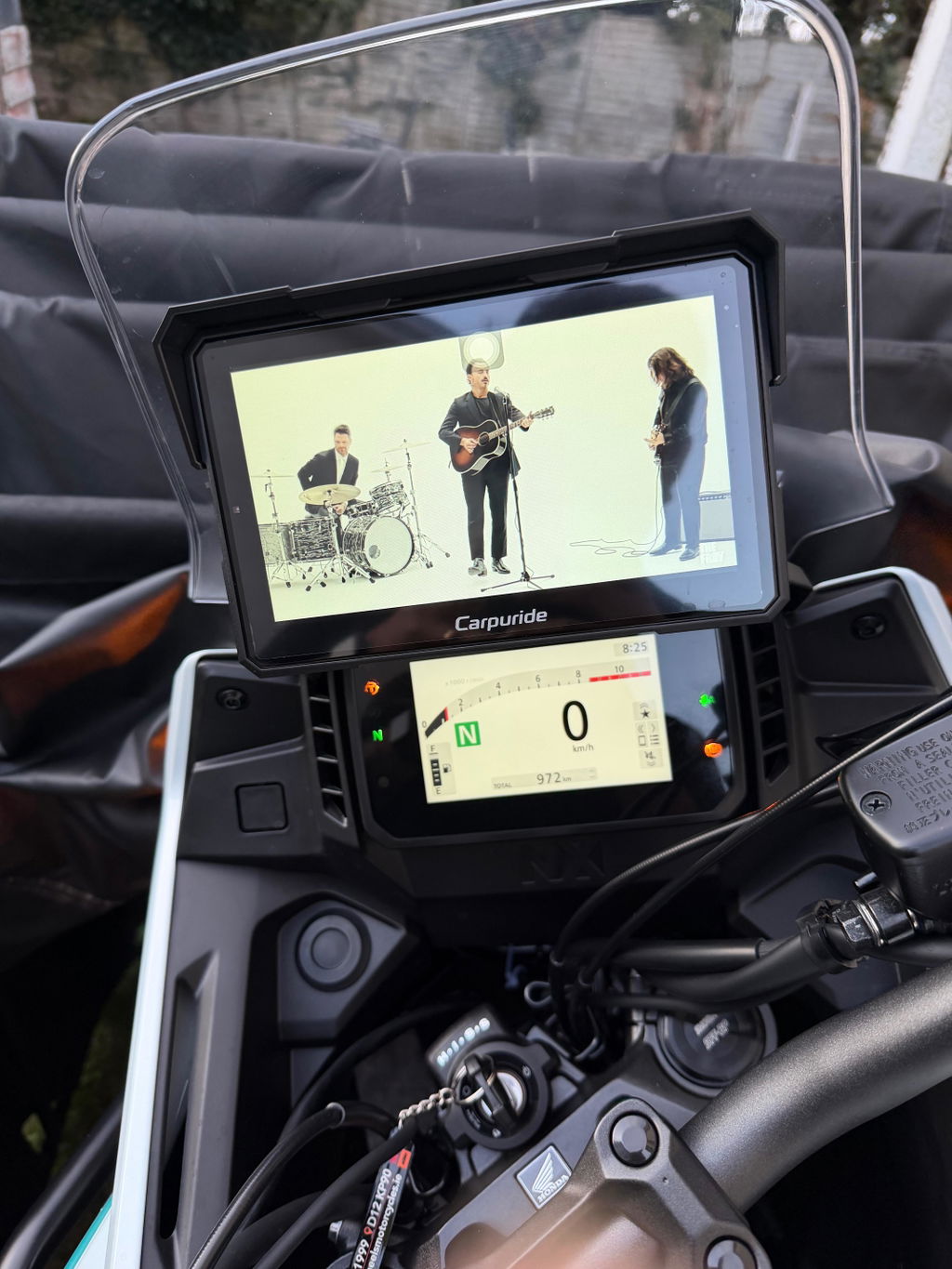
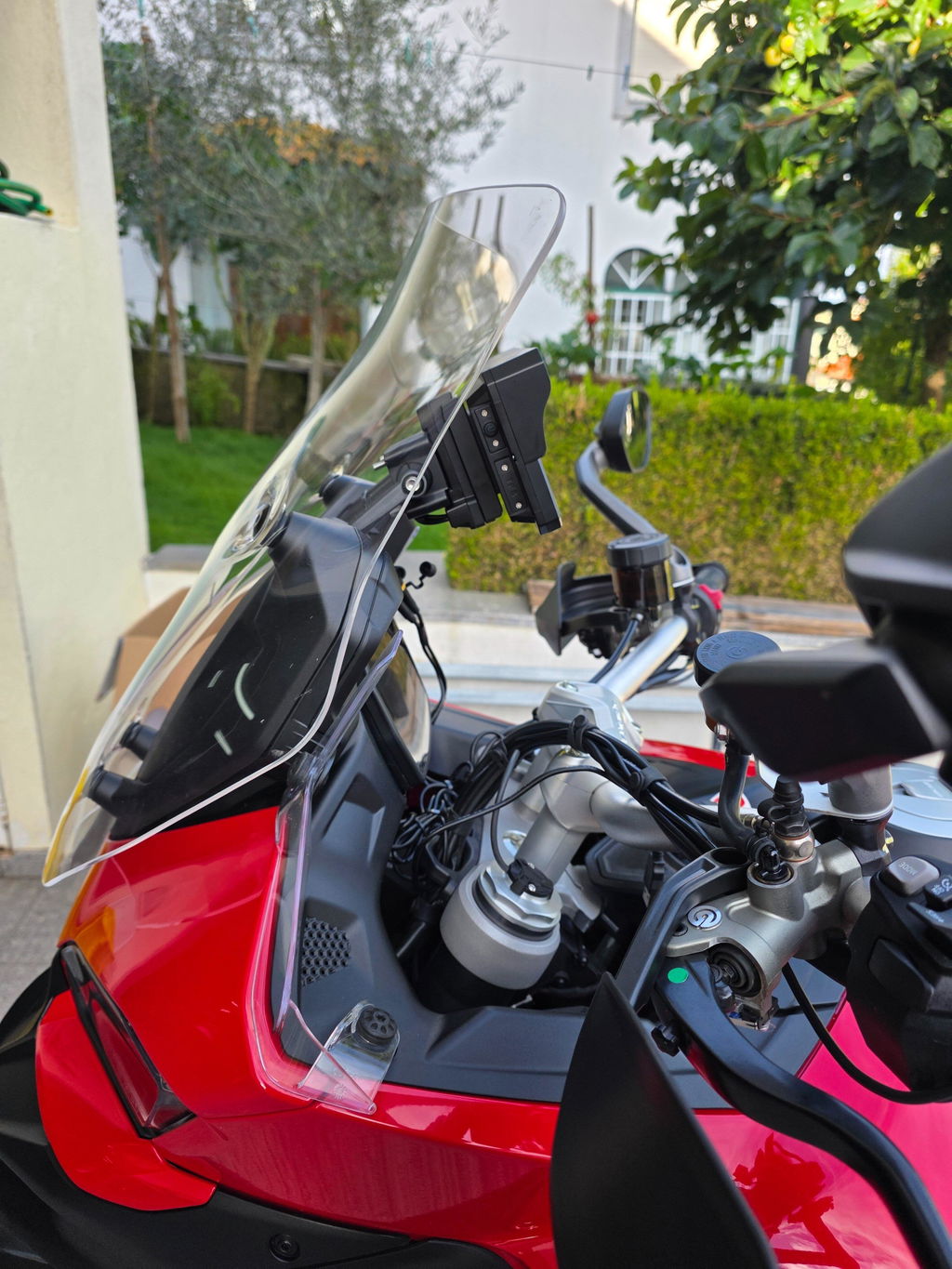
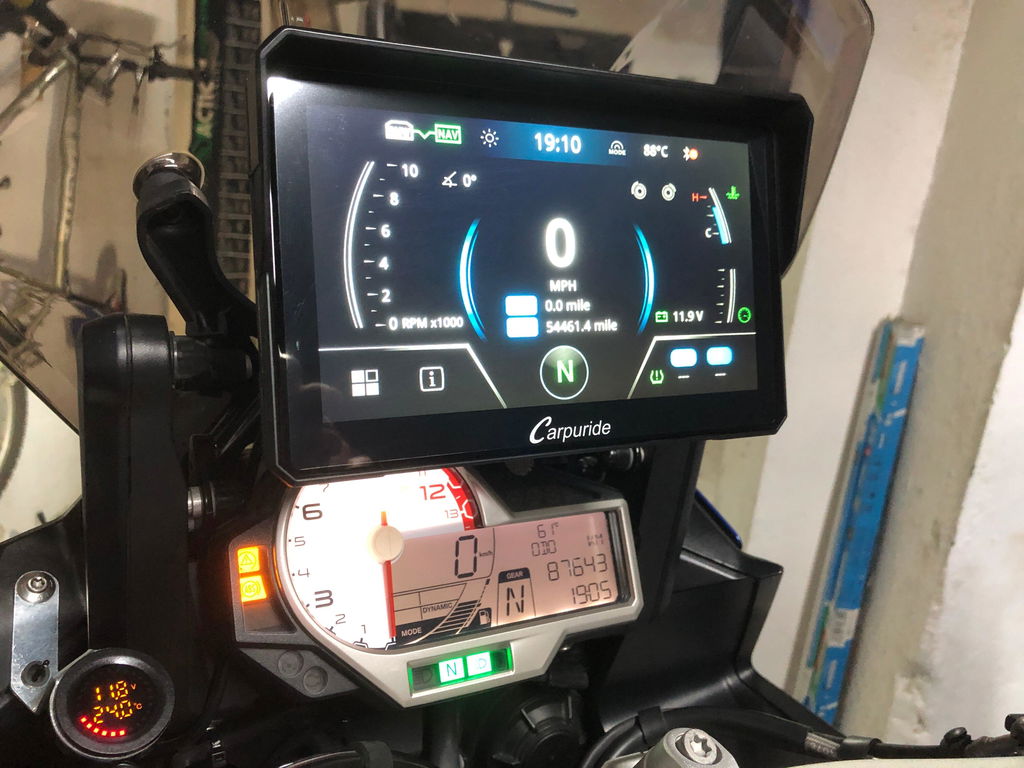
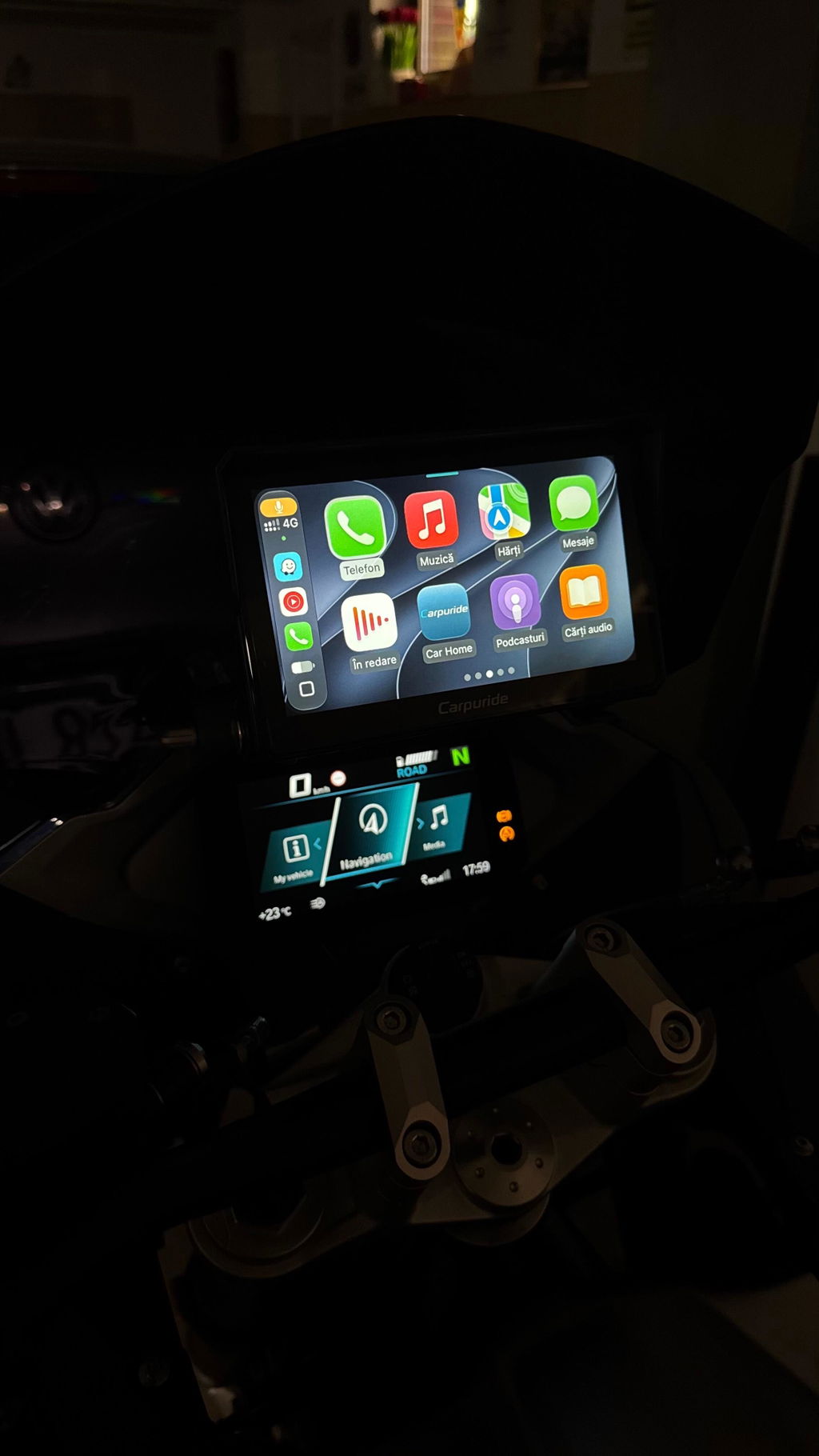
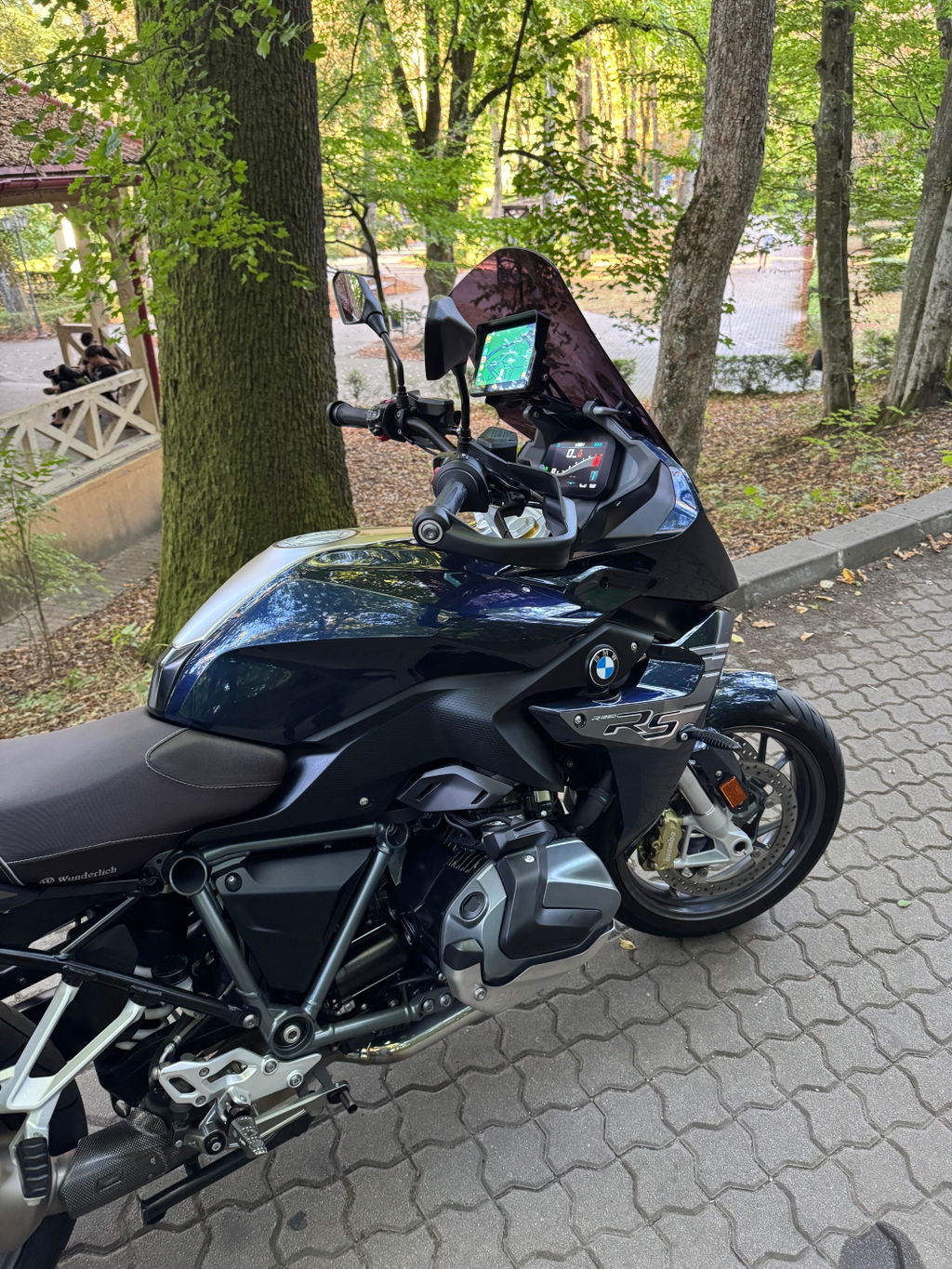
If you've installed the Carpuride BS series device (W702BS, W502BS, or W602BS) on your BMW motorcycle and found that the original Wonder Wheel is completely unresponsive, don't worry! This is a common issue that can usually be resolved through simple settings adjustments. This guide will provide you with complete troubleshooting solutions.
📋 Problem Description
After installing your Carpuride BS series device on your BMW motorcycle, you may encounter the following situations:
- ✗ Unable to scroll between applications
- ✗ Cannot enter Data View by tilting the Wonder Wheel
- ✗ The entire Wonder Wheel is unresponsive and cannot control the device
🛠️ Solution 1: Switch to NAV Control Mode (Recommended Method)
This is the most common and effective solution. The root cause is that the system's control focus is not currently on the "Navigation (NAV)" side, requiring manual control mode switching.
Detailed Steps:
-
Enter Main Menu Interface
Ensure you are on the device's main menu screen -
Long Press Menu Button
In the handlebar control area, locate and long press the "MENU" button -
Observe Display Status
Sometimes "NAV TFT" will appear at the top of the instrument panel, while other times there may be no obvious indication. Regardless of whether there's a prompt, continue holding the button until the system switches to "NAV" mode -
Confirm Normal Operation
Once the system enters "NAV" mode, the Wonder Wheel will regain control, and you can now scroll through apps or perform other operations normally
🔄 Solution 2: Upgrade MCU Firmware
If Solution 1 doesn't resolve the issue, it may be due to compatibility problems caused by outdated MCU firmware. This solution applies to all BS series models: W702BS, W502BS, and W602BS.
- Latest keyless cradle → Upgrade to MCU V1.18
- Older keyed cradle → Upgrade to MCU V1.17
If you're unsure about your cradle version, please contact customer service for confirmation before upgrading.
Method A: OTA Online Upgrade (Recommended)
Steps:
- Ensure your device is connected to a stable Wi-Fi network
- Navigate to Settings > System Update
- Check for MCU firmware updates
- Download and install the appropriate MCU firmware (V1.18 for keyless cradle or V1.17 for keyed cradle) via OTA
- After the upgrade is complete, restart the device and retest the Wonder Wheel functionality
Method B: TF Card Upgrade (Alternative Method)
If the MCU version number does not display or OTA upgrade is unavailable, use this method:
Steps:
- Contact Carpuride customer service to confirm your cradle type and request the appropriate MCU firmware file (V1.18 or V1.17)
- Download the firmware file provided by customer service
- Copy the firmware file to a TF card (SD card)
- Insert the TF card into your Carpuride device
- Follow the on-screen instructions to complete the upgrade
- After installation, restart the device and verify the Wonder Wheel functionality
🏍️ Solution 3: Update BMW Navigation Data Package
If neither of the first two methods resolves the issue, it may be because your motorcycle system has not activated the 272 navigation function, or the BMW cradle's data package itself has not been updated.
Steps:
- Visit an authorized BMW dealership
- Request technicians to update the motorcycle navigation system data package
- Confirm that the 272 navigation function has been activated
- After the update is complete, retest the Carpuride device
📊 Troubleshooting Flowchart
Recommended Troubleshooting Order:
1️⃣ Try switching to NAV mode (long press MENU button)
↓ If ineffective
2️⃣ Upgrade MCU firmware (V1.18 for keyless cradle / V1.17 for keyed cradle)
↓ If still ineffective
3️⃣ Visit BMW dealership to update navigation data package
❓ Frequently Asked Questions (FAQ)
Q1: Why does the Wonder Wheel malfunction occur?
A: The main reason is that the system control focus is not on the navigation (NAV) side by default. This is a normal initial setting, not a device failure.
Q2: How long do I need to press the MENU button?
A: Typically, you need to hold it for 3-5 seconds until you see the system switch to "NAV" mode or the Wonder Wheel becomes responsive.
Q3: Which Carpuride models does this guide apply to?
A: This troubleshooting guide applies to all BS series models: W702BS, W502BS, and W602BS. All three models may experience similar Wonder Wheel issues and can use the same solutions.
Q4: How do I know which MCU version to upgrade to?
A: It depends on your BMW navigation cradle type. The latest keyless navigation cradle requires MCU V1.18, while older keyed navigation cradles should use MCU V1.17. Contact customer service if you're unsure about your cradle type.
Q5: What's the difference between OTA and TF card upgrade methods?
A: OTA (Over-The-Air) upgrade is more convenient and can be done wirelessly. TF card upgrade is an alternative method when OTA is unavailable or when the MCU version number doesn't display.
Q6: What if all three methods don't work?
A: Please contact the Carpuride customer service team, as more in-depth technical diagnostics or hardware inspection may be required.
✅ Purchase Guarantee
Our Commitment
- ✓ Professional technical support team on standby
- ✓ Regular firmware updates ensure optimal compatibility
- ✓ Comprehensive after-sales service system
- ✓ Detailed installation and usage guides
- ✓ Support for all BS series models (W702BS, W502BS, W602BS)
📞 Need Help?
If you encounter any problems during operation, or if the above methods cannot resolve your issue, please feel free to contact us:
Get Technical Support Now
Our professional team will provide you with one-on-one technical guidance
📧 Email: support@carpuride.com
This guide applies to Carpuride BS series products: W702BS, W502BS, and W602BS. We continuously update content to ensure we provide you with the most accurate technical support.