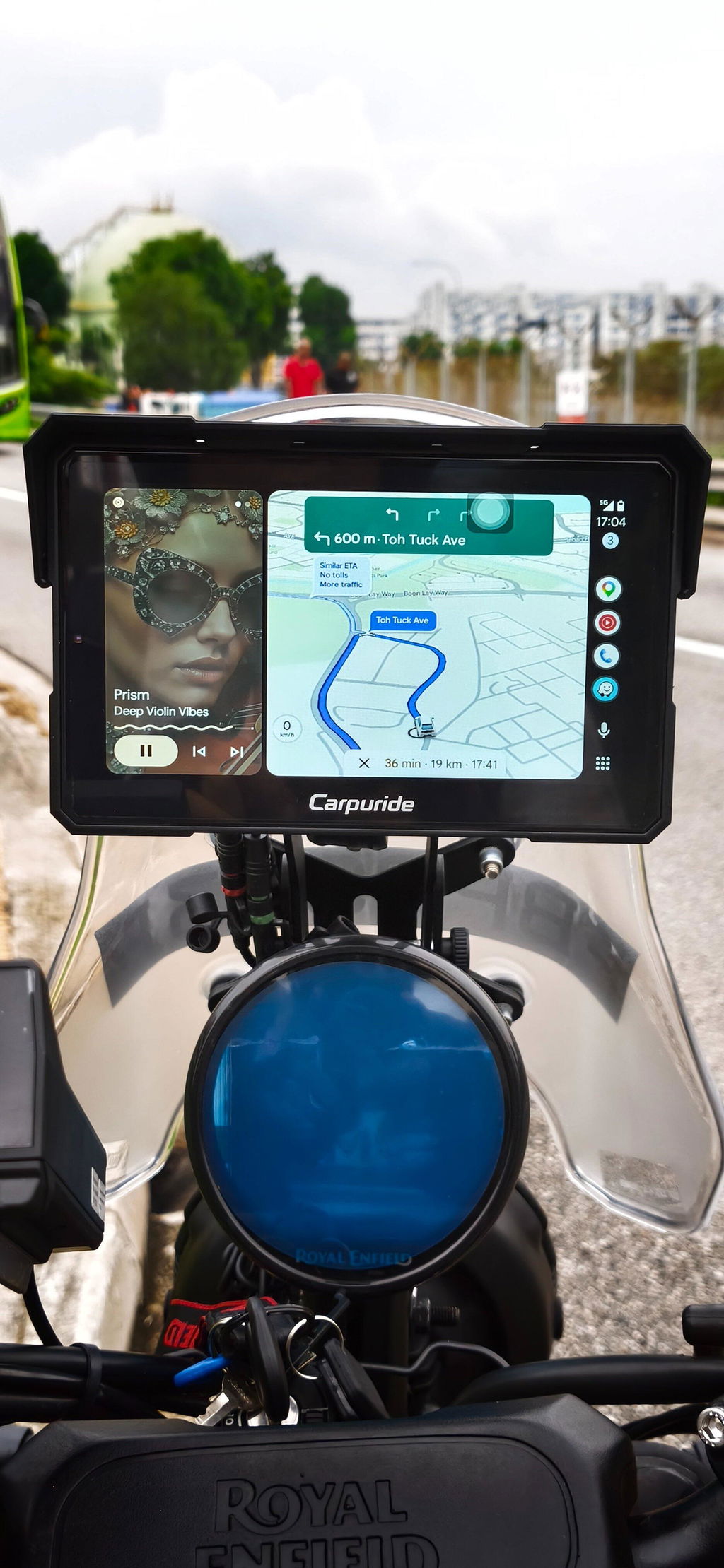
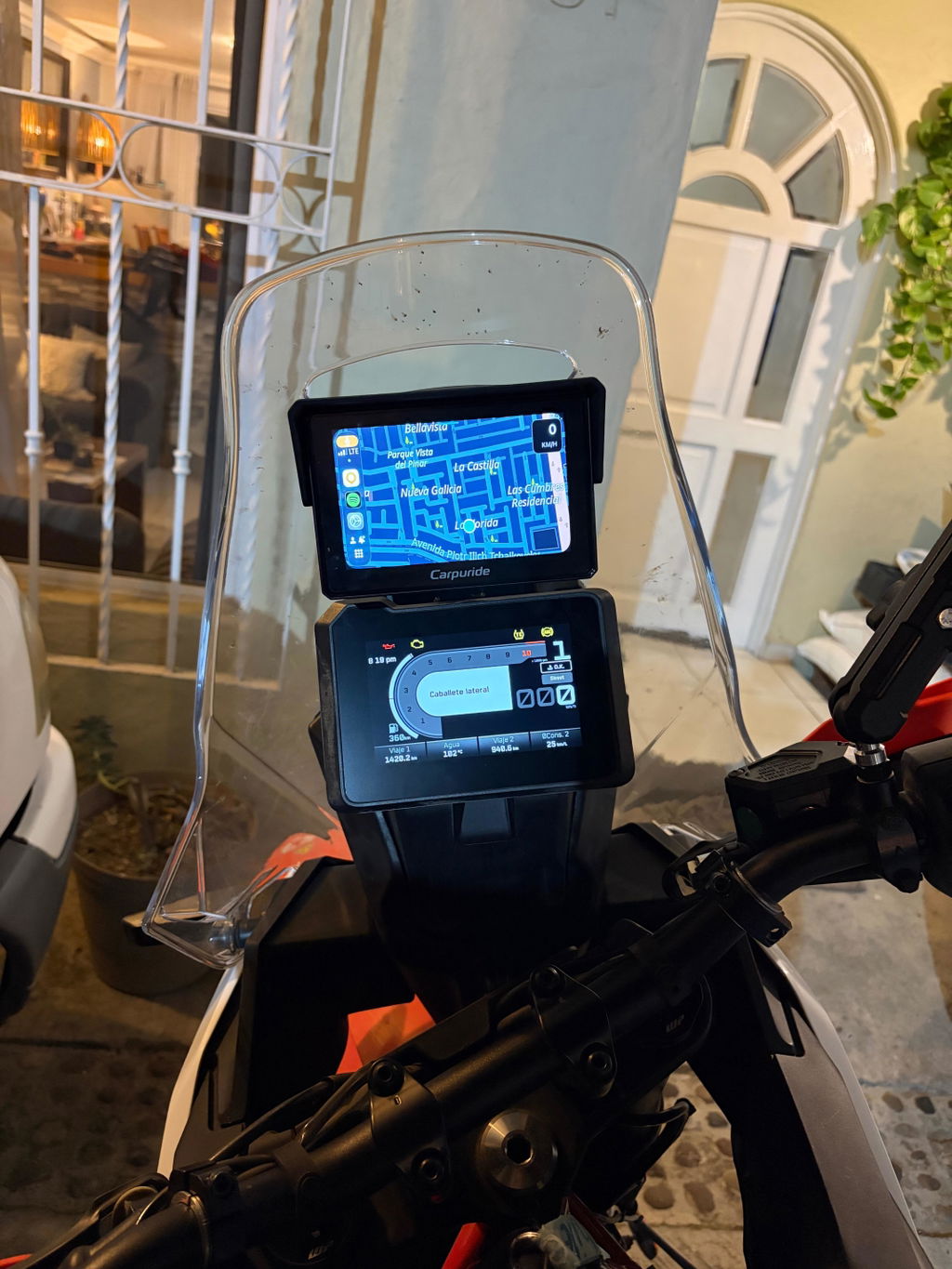
If your Android phone keeps disconnecting from your Carpuride device, try the fixes below. Connection settings, software compatibility, or wireless interference may be involved.
Complete troubleshooting while safely parked. Menu names and available options vary by phone and Carpuride model. Test after each fix and stop once the connection works normally.
🛠️ Fix 1: Reconnect First, Then Reset Only If Needed
🔄 Restart and Reconnect
Make sure your phone’s Bluetooth and Wi-Fi are enabled, then try reconnecting. If frequent disconnections continue, restart both your phone and the Carpuride device and test again.
✅ On Your Android Phone
If restarting and reconnecting do not help, clear the relevant saved connections:
- In Wi-Fi settings, find the saved Carpuride network and select Forget Network.
- In Bluetooth settings, find the Carpuride pairing record and select Unpair or Forget Device.
- In Android Auto settings, remove the saved Carpuride vehicle using Forget this car, if available.
✅ On Your Carpuride Device
- Delete the saved Bluetooth record for your phone.
- Delete the related Wi-Fi record if your device provides that option.
Only remove records related to this connection. If a record or option is not listed, skip it.
🔄 Android Auto Reconnection Steps
- Turn off mobile data on your phone.
- Open the A-Auto or Android Auto connection function on your Carpuride screen.
- Enable Bluetooth and Wi-Fi on your phone.
- In your phone’s Bluetooth settings, select the device name displayed on your Carpuride connection screen.
- Complete the pairing and Android Auto setup or permission prompts.
- After pairing, turn mobile data back on.
- Confirm that Android Auto opens and test whether the connection remains stable.
📌 Tip: Use the Bluetooth name shown on your own screen, rather than an example name from another device.
⚠️ Restore Factory Settings Only If the Previous Steps Fail
If frequent disconnections continue after reconnecting and re-pairing, restore the Carpuride device to factory settings, then set it up, pair your phone again, and test once more.
Important: A factory reset clears saved device settings and connection records. It is different from deleting pairing records. Only proceed after the earlier steps have failed. The reset menu varies by model.
🔄 Fix 2: Try Uninstalling Android Auto Updates
If the problem began after an Android Auto update, or other troubleshooting methods have not worked, you can try uninstalling Android Auto updates.
How to uninstall Android Auto updates:
- Open your phone’s Settings and go to Apps or Apps & Notifications.
- Find Android Auto.
- Select Uninstall updates, if available. This option may appear in an additional menu.
- Restart your phone, reconnect to Carpuride, and test again.
⚠️ Note: If your phone does not provide this option, skip it. Uninstalling updates is different from reinstalling the app. Do not use unofficial installers or remove unrelated system components.
📶 Fix 3: Try a Different Wi-Fi Channel
If your Carpuride model provides a Wi-Fi channel setting, switching channels may help when wireless interference causes unstable connections.
For devices with channel options 36 and 149, try switching from the default channel 36 to channel 149:
- On your Carpuride device, look for Settings > Wi-Fi Settings > Advanced Settings.
- If Channel Selection is available and set to 36, try changing it to 149.
- Reconnect your phone and check whether stability improves.
📌 Note: Menu names and channel availability may vary. If your device does not provide this setting, skip this fix or ask support for model-specific guidance.
📱 Fix 4: Update Your Carpuride Software
A compatible software update may improve connection stability. The update method depends on your device model and software version.
1. Devices Supporting OTA Updates
The models listed in this guide include motorcycle BS, Plus, SPro, RS Pro, B Pro, and Pro series. Some B Pro and Pro units from 2024 or earlier may not support OTA updates.
If your device supports OTA updating:
- Connect it to the internet using a supported connection, such as a phone hotspot.
- Open Settings > System Update and select Check for Updates, if available.
- Follow the on-screen instructions to install an available update.
- Restart the device and reconnect your phone.
📌 If you are unsure whether your unit supports OTA updates, send support your model number and a photo of its software version screen.
2. Devices Requiring a Manual Update
Contact Carpuride Support with your device model, current software version, and the barcode on the back of the device to obtain the appropriate software and instructions.
📧 Email: support@carpuride.com
⚠️ Important: Only install software confirmed compatible with your unit. Do not turn off the device or remove the update storage device during installation.
🤝 Fix 5: Test With Another Android Phone
If the problem remains, try connecting another compatible Android phone to the same Carpuride device.
- If the other phone connects successfully and stays connected: Your original phone may be incompatible. This result alone does not confirm incompatibility.
- If the other phone also disconnects or cannot connect: Contact Carpuride Support for further troubleshooting.
💡 Tip: Keep your phone close to the Carpuride device and avoid metal obstructions during testing. If another phone is not available, explain this when contacting support.
📋 Check Android Phone Compatibility
Compatibility can vary by phone model, operating system, firmware, and region. Do not assume that every phone from the same brand will perform identically.
For compatibility information and limitations, see our Carpuride Device Wireless Connection Android Phone Compatibility Statement.
🧠 Still Need Help?
Please contact our support team with:
- Your phone brand, model, and Android version.
- Your Carpuride model and software version.
- Whether the connection has never worked or previously worked.
- When the disconnection occurs, including any error messages or short fault videos.
- The steps already tried and the result of testing another phone, if available.
📧 Email: support@carpuride.com
⭐ Featured Product: Carpuride W702BS – Optimized for BMW Motorcycles
The Carpuride W702BS is a premium 7-inch waterproof display designed for modern motorcycles. It supports Android Auto, Apple CarPlay, and intuitive handlebar controls. Plus, it delivers real-time bike data like speed, throttle position, and mileage, enhancing your ride with seamless connectivity.
Read More
Carpuride Connection Issues: Troubleshooting for iPhone and Android
Carpuride Motorcycle CarPlay Screen Connection Guide: Common Issues and Solutions
Carpuride Device Wireless Connection Android Phone Compatibility Statement